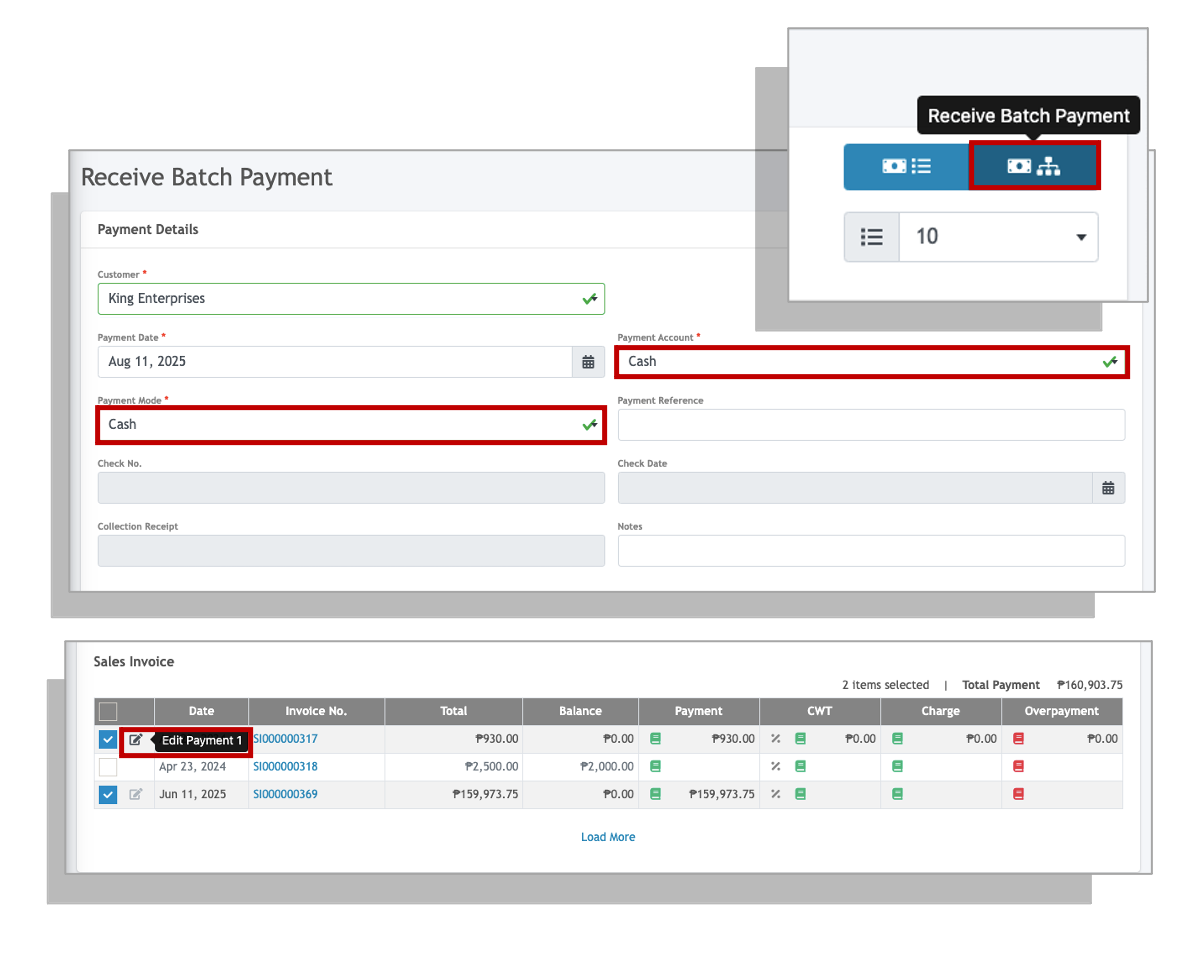
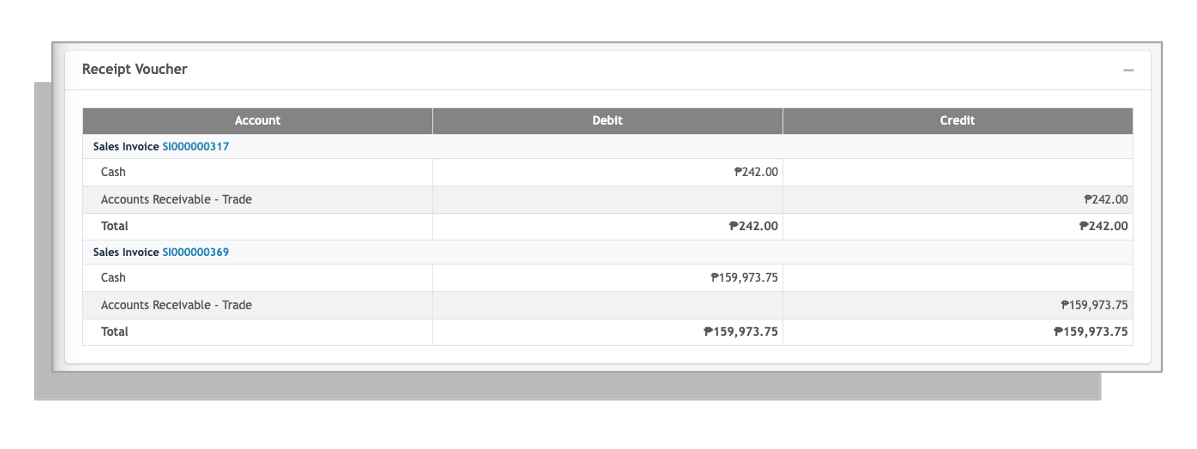
In this guide, we will be going through receiving payments for both Sales and Billing invoices and the differences in how payments are made for both.
Note: For actual cash or bank receipts, make sure the appropriate cash or bank GL account is available. For non-cash settlements, select the account that represents the reason the receivable is being reduced.
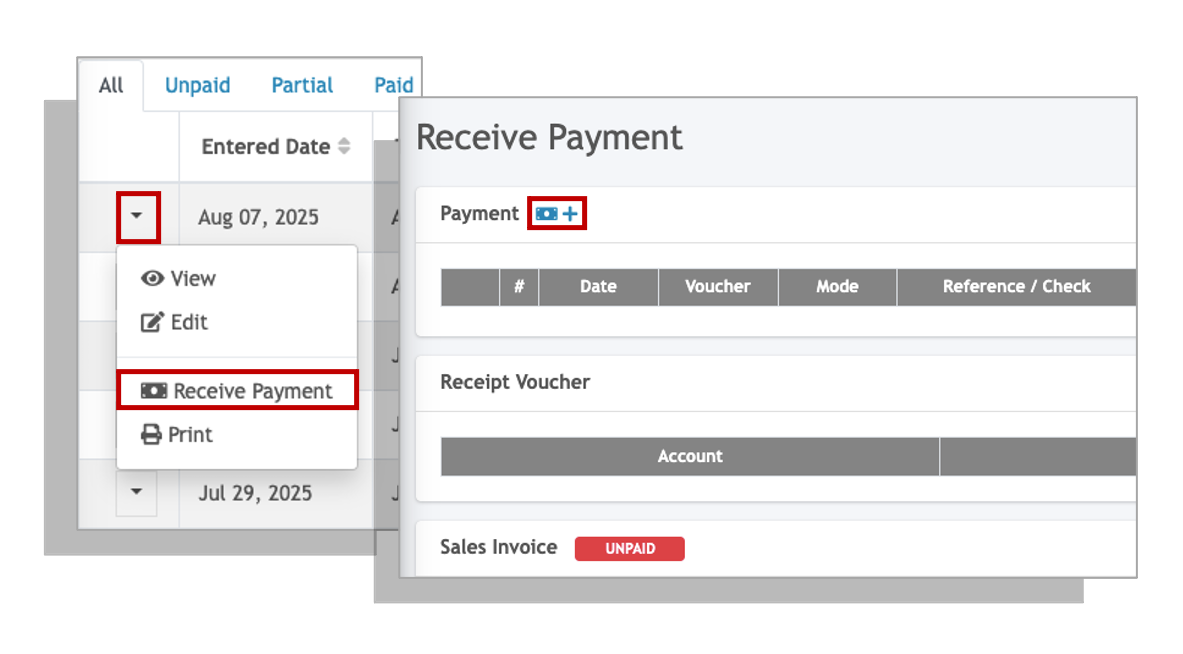
When receiving payments per invoice, go to the listing screen and click on the drop down icon beside the transaction you will be receiving a payment for.
1. Click on the Receive Payment option.
2. In the Receive Payment screen, click on the plus or add icon.
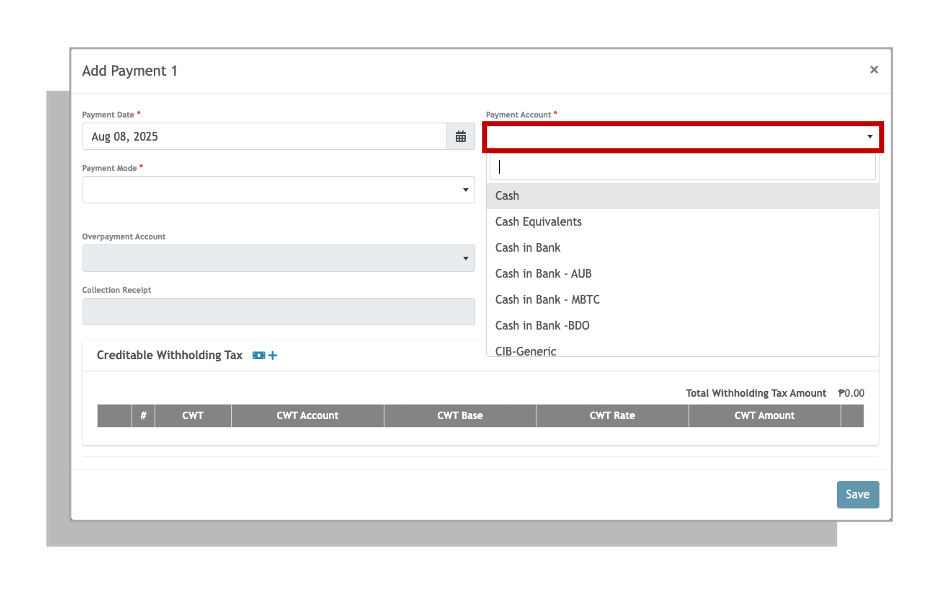
3. Set the payment date to when the payment is received.
4. Enter the amount that is paid by the Customer. This can be in full or a partial payment.
5. The Payment Account is the account the Oojeema will debit when Receipt Voucher (payment) is recorded. Account to debit does not always necessarily mean cash accounts only.
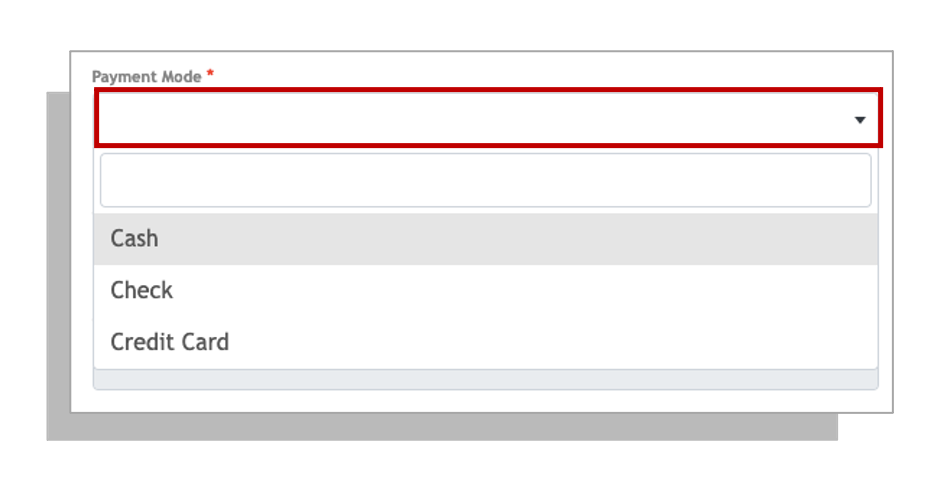
6. Select a mode of payment and details of the payment mode.
Concept:
A Receipt Voucher reduces the customer’s outstanding invoice balance. It may represent an actual cash receipt or a non-cash amount that settles part of the invoice, such as a sales discount, creditable withholding tax or application of a customer deposit.
Recording Creditable Withholding Tax (CWT) per Invoice #
A Creditable Withholding Tax (CWT) is tax withheld by a payer on behalf of a taxpayer, which can be credited against the taxpayer’s annual tax liability.
1. Click on the add withholding tax button.
2. Select an appropriate Alphanumeric Tax Code (ATC) from the Creditable Withholding Tax drop down field.
3. Enter the withholding tax base amount that will be the basis of the withholding tax computation. This is usually the net of VAT amount.
4. Click Confirm to apply.
5. You can add additional multiple withholding tax deductions (up to 5) by simply click on the add withholding tax button.